FAQ

Sales FREQUENTLY ASKED QUESTIONS

Where are your servers located?

Our servers are located around the world in all continents.

Can I upgrade or downgrade my plan anytime?

Yes, you can upgrade or downgrade your hosting plan at any time to better suit your needs.

What payment methods do you accept?

We accept payments via card (Interswitch, Verve, Visa, and Mastercard) through Flutterwave, Paystack, PayPal and Bank Deposit.

How do I migrate my website to your company server?

You can request assistance from our support team to migrate your website, including files, emails, and domains.

What kind of security measures do you have in place?

We provide comprehensive server-side security, automated backups, and DDoS protection. However, it is the client’s responsibility to secure their website.

What is your policy on website traffic and bandwidth limits?

We offer unlimited bandwidth on all our Web Hosting plans. However, we throttle speeds for users who exceed 500GB of bandwidth in a month.

What Time Our Servers are Making Backup?

Our servers are making backup after every 3days and we have a weekly backup on Sunday and monthly backup. This is selected from the weekly backups.

All the servers are set to be making such backup.

You can make your backup any time from the cpanel and download if there is need for that.

How to Upgrade or Downgrade my account?

It is easy to Upgrade to a higher package or Downgrade to a lower package, our system is flexible to suit your needs.

Login into your account

Services >> My Services >>> then Choose the account you want to upgrade by clicking on the Active Tap in green colour then go to Upgrade/Downgrade >>> Choose Product you want to upgrade or downgrade.
The system will automatically calculate the days you have used on the current package and give you the total amount to pay for the next package or fund the balance to your Ewallet or refund.

You can downgrade or upgrade an expired package, this is manually operation from here. You have to pay only the new package fee if the package has expired

After that proceed with selecting the Payment Gateway and click on continue which will generate an invoice for to pay. Or you select bank deposit to go to the bank or online transfer.

How To White-list Your Connection Ip?

You can now white-list all the blocked IPs you have from the client area. all you have to do is to follow the step by step instructions bellow:

Login to the client area > Services >> My Services >>> Choose Product Click on “Active” Green Tap >>>> IP Unban Center by the left under “ACTION” Tap >>>>> click on Padlock Unban by the right >>>>>> Unban Your IP Address Appear >>>>>>> Unban.

Note that you have to choose the website you cannot access or the connection can’t connect on choose product. The system will automatically detect your current IP and you white-list by clicking on unbanning.

Note also that unban center is located at the left side of the page and the last on the list under the Action tap.

How to activate site softwares?

You can add many useful functions to your website by installing pieces of software called cPanel addons. Your web host controls which site software is available for you to use with your website. Contact your web host for more information about adding site software to your account.

To manage your addons, click Site Software. Here you will find the addons which are allowed for your account. To install an addon, click its link.

Most will require you to type in your username and password.

Domain Expiration!?

All domain can be registered for 1 to 10 years subsription, after expiration you have 30 days to renew it as grace period.

And after that there is redemption period, this period attract restoration fee. you have to renew your domain before the redemption period to save cost.

After the redemption period the domain will be deleted and become free again that anybody can register it as the first owner lost the ownership by failing to renew it during grace period or restore it within redemption period.

Please open a ticket for restoration fee.

How Business Email Works?.

How to Manage Business Email Service.

Business Email Services is an external email service you can use if you find it uncomfortable with Cpanel email, or for other reasons. It’s recommended to use such email services if your site is on a shared server or you have a smaller VPS that cannot accommodate much more email traffic at a time.

After purchasing the Business Email, you need to point to the DNS “MX” records and other records that will be available to route the emails to the new server. After propagation, your Business Email starts working.

You can login to your Business Email using a URL like this: webmail.yourdomain.com,ng

Business Email Service has a default disk of 5GB and you can purchase an additional disk “DISK BLOCK” of 5GB or more to suit your needs.

Business Email Service has an “Inbuilt Virus Protection” for security.

Upgrading and downgrading emails is simple from the dashboard provided in your client area.

Email management to create, delete, and edit email users.

DNS management to manage the DNS records to your needs.

Feel free to call or write to us for more information.

How to renew hosting and domain name tied together?

Login to your Clientarea account and submit a support ticket specifying the hosting(domain name) you wish to renew and we can generate the invoice for you.

php error: Allowed memory size of x bytes exhausted?

If you are getting an error like “Allowed memory size of… in file /directory/folder/yourscript.php“, then you can use an .htaccess trick to resolve this problem. If this error does not go away even after you apply this .htaccess code, you should contact us and we will help you.

Place this code in your .htaccess file of your main domain and if this error persists even after you have used the code, enter it in a directory where you are receiving an error, such as example.com/directory/folder/.htaccess and place the code in the /directory folder.

RLimitMem max

How to Add a cPanel email account to an Android mobile?

You can add a cPanel email account to your Android mobile using the built-in email application. You do not need to use any external application from Google Play.

1. Open your android mobile, go to the main menu and the “Settings” options, and under the “Accounts” option, tap on “+ Add Account“.
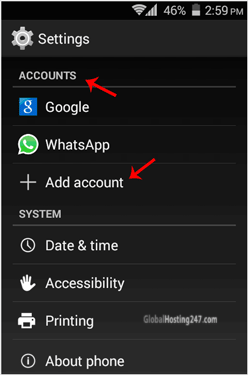
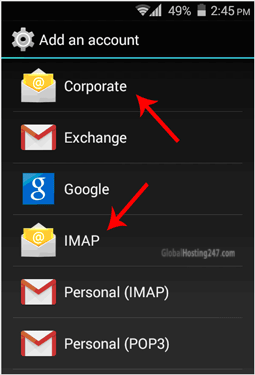
add-account-android-email.gif2. Now tap on the “Corporate” or the “IMAP” email icon. Both are the same.
android-imap-cpanel-add.gif

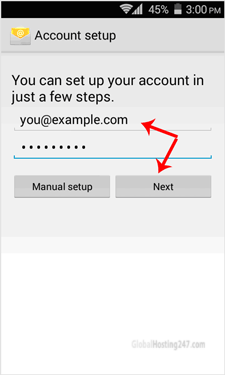
3. In the account setup, enter your full email address such as “you@example.com” and your email password. Then Tap on the “Next option.
email-setup-android.gif

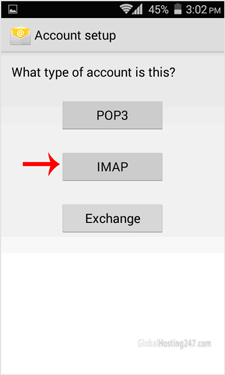
4. You will get 3 options and you just need to tap on the “IMAP” option.
android-select-app.gif

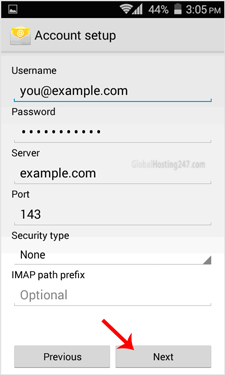
5. Make sure you are using your domain name in the server field, for example “example.com”, and the port should be set to 143. Then tap on the “Next” button. (Leave all other options as they are.)
account-setup-android-email.gif

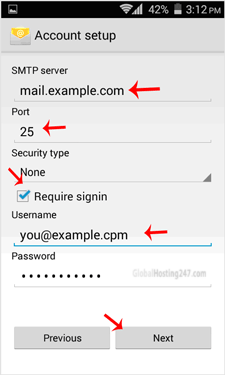
6. Under “SMTP Server”, change “smtp.example.com” to “mail.example.com” and change the port to 25. Then tap on the “Next” button.
smtp-server-setup-android.gif
7.

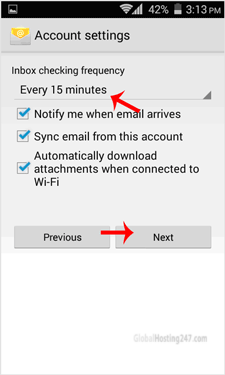
 If you want to change the inbox sync frequency, then do it. Otherwise, tap on the “Next” button.
final-setup-email-android.gif

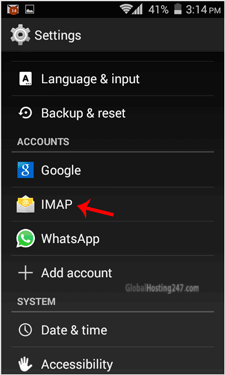
Congratulations! Now, whenever you receive an email, you will be notified. You can see a list of email accounts from your Android at Settings >> Accounts >> IMAP.
setting-imap-android.gif

There is a list of accounts, sync on/off details and a new email notification.
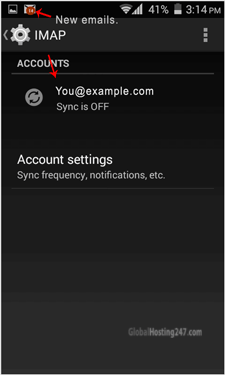
imap-account-list-android.gif

If you want to know how to read/check emails manually or compose a new email, check our other tutorials on Android.
How to Add a cPanel email account on Apple/iOS?

You can add a cPanel email account to your Apple IOS mobile and be able to automatically check emails in a specific time or manually do it. You can get a new email notification on your email.

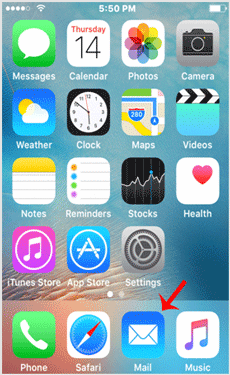
1. Open the main screen of your Apple Mobile and click on the “Mail” Icon.
ios-apple-home-screen.gif

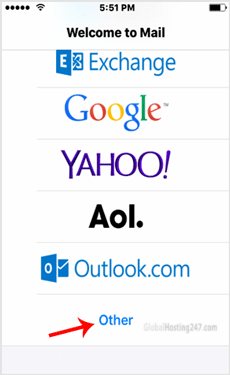
2. Select the “Other” Option.
apple-other-email-option.gif

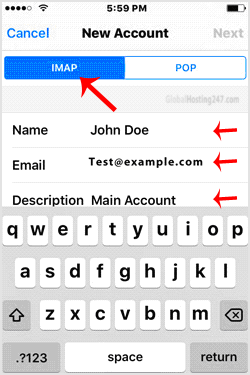
3. Tap on New Account and then under the “Imap” option. Enter an email, your full cPanel email address and a description such as Support Account, etc. Then press  the “Next/Ok” button.
email-apple-email-ac-cpanel.gif

4. It can take a few minutes to verify the login details.

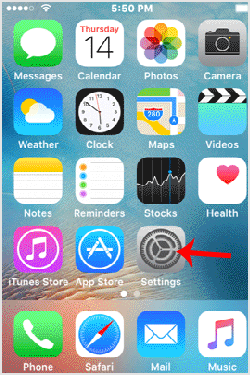
5. If the account is successfully added. Go to the Home Screen and click on Settings.
ios-apple-cpanel-setting.gif

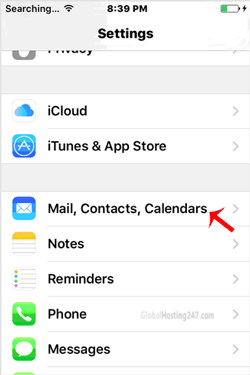
6. Scroll down and tap on Mail, Contacts, Calendars found under the setting option.
apple-cpanel-mail-contacts.gif


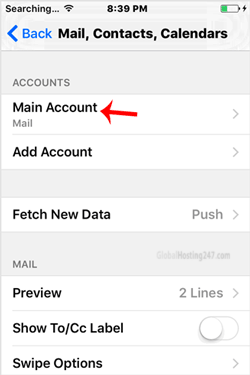
7.
 Under “Accounts“, tap on the email account you created in step 3.
apple-ios-cpanel-email-ac.gif

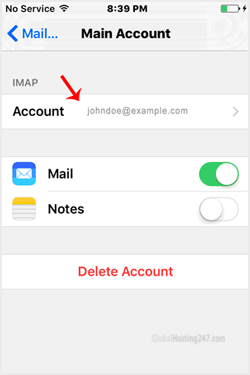
8. Under IMAP option, tap on your email address.
imap-ios-apple-email-cpanel.gif
Note: Mail option should be turned on (Green) and Notes should be disabled.

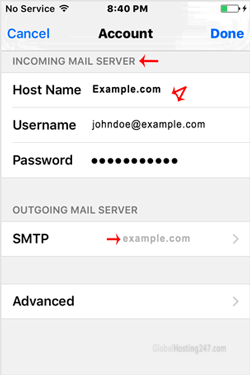
9. Under “Incoming Mail Server”, your info should be as follows:
Hostname:
mail.domain name, such as mail.example.com where your domain is example.com
Username: 
Your full email address such as you@example.com
Password: 
Your email password.
incoming-mail-server-iosapple-cpanel.gif

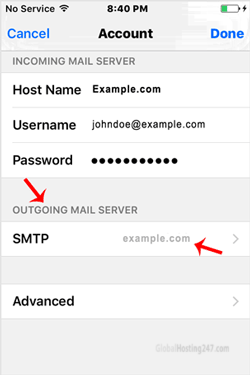
10. Now Tap on SMTP domain under the “Outgoing Mail Server option.
outgoing-smtp-iphone-cpanel.gif

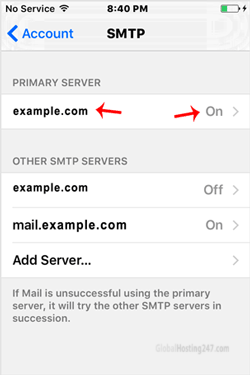
11. Make sure that the “Primary Server” status is “On.
ios-apple-smtp-primary-server.gif

12. Outgoing Mail Server
Hostname: mail.domain name, such as mail.example.com where your domain is example.com
Username: Your full email address, such as you@example.com
Password: Your email password.
Use SSL: On
Authentication: Password.
Server Port: 465

(You can find more details in your cPanel for the configuration of your email >> Email >> Your Email >> Email Configuration)

Some Tips: If you have entered everything correctly and you get authentication error or does not work, you can login to the CPanel to try the mail Client Automatic Configuration Scripts.

We do:

Domain Sales and Web Hosting

Web Development

Software Development

Mobile Apps Development

Digital Marketing

AI Automation & Integration

Cyber Security

About Us

We are a forward-thinking technology company dedicated to delivering innovative digital solutions that help businesses grow, improve efficiency, and stay ahead in a rapidly evolving digital world. With expertise spanning software development, mobile and web applications, artificial intelligence e.t.c.. We provide end-to-end technology solutions tailored to each client’s unique needs.

Contact Us

USA:831 S Front St, Columbus, Ohio 43206, Inited States Africa:Ajah, Lekki 106104, Lagos, Nigeria Asia:Sahakar Sankul, Edc Complex, Patto, Panaji, Goa, India Email:info@worldwebdemand.com Web:https://worldwebdemand.com
© Copyright 2026 - World Web Demand.